Trim and export your video
Every take is its own video file. You can trim it and export a copy, and the original take stays unchanged.
-
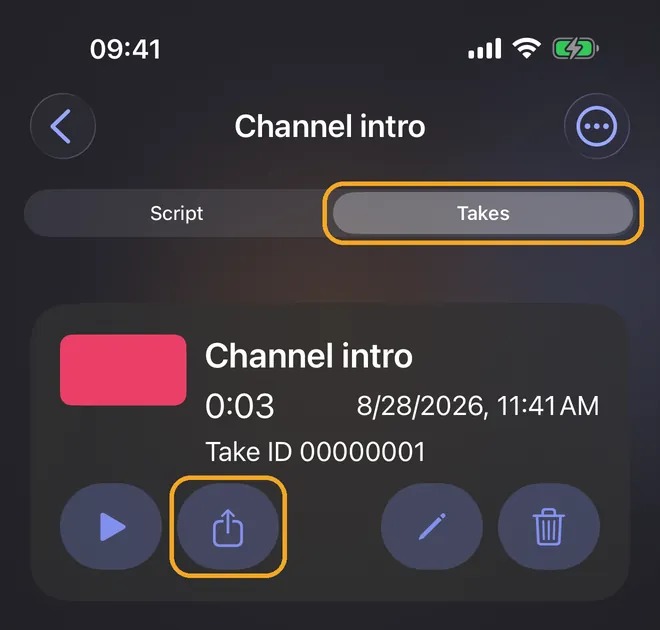
Open your script and tap Takes. Under the take you want, tap Export take, the button with the arrow.
-
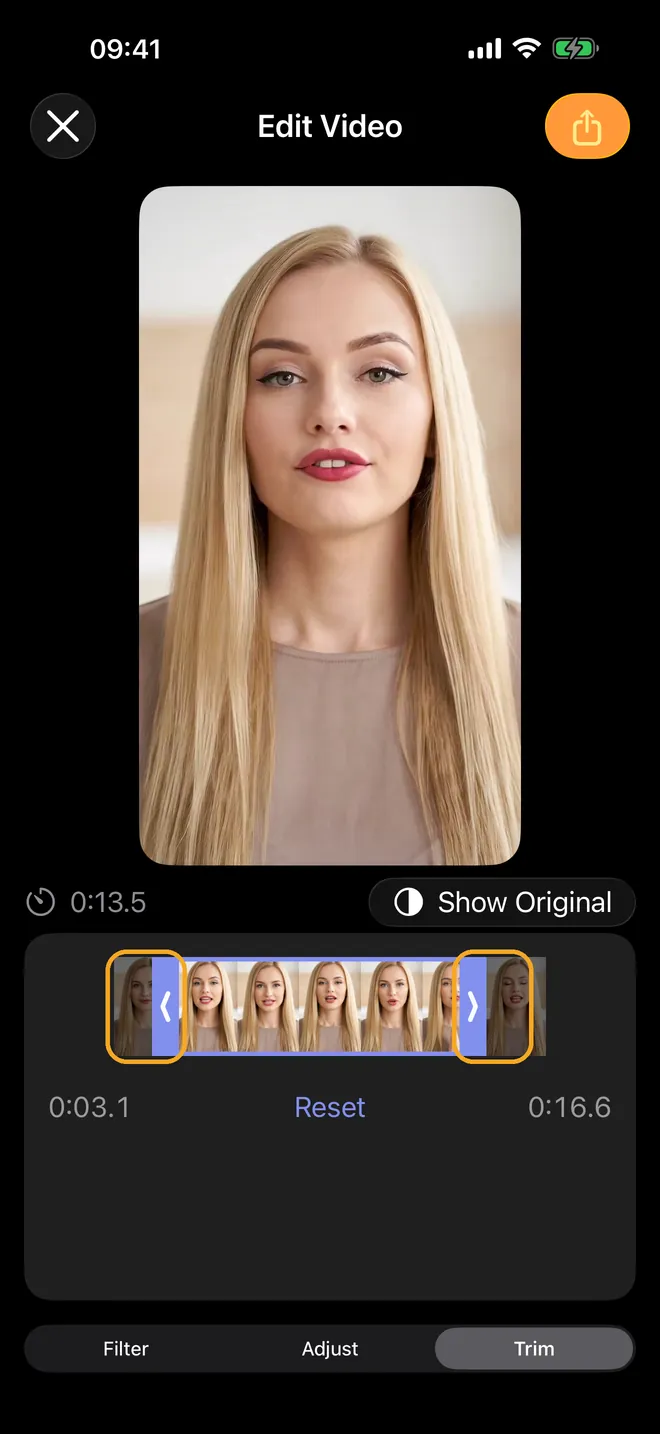
In Edit Video, open Trim and drag the start and end of the selection. Reset brings back the full length. Under Filter and Adjust, you can change the look.
-
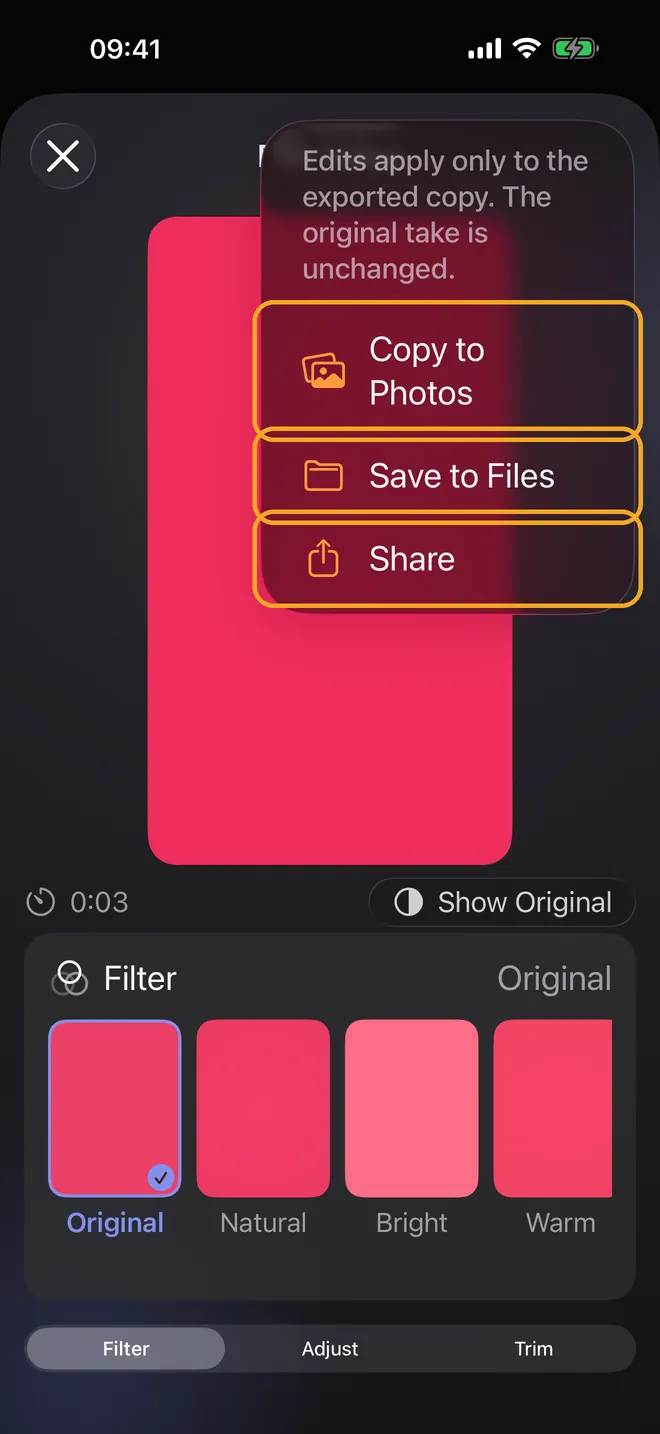
Tap Export and choose Copy to Photos, Save to Files, or Share. Your changes apply only to the exported copy.
Guides · Import or paste your script · Record with Voice Follow · Choose your camera and microphone